dbtrail
Guides

Query in DuckDB

Run your own SQL over the Parquet files dbtrail keeps, on your own machine, with a schema the console writes for you. Reporting, ad-hoc analysis and audits with no load on production.

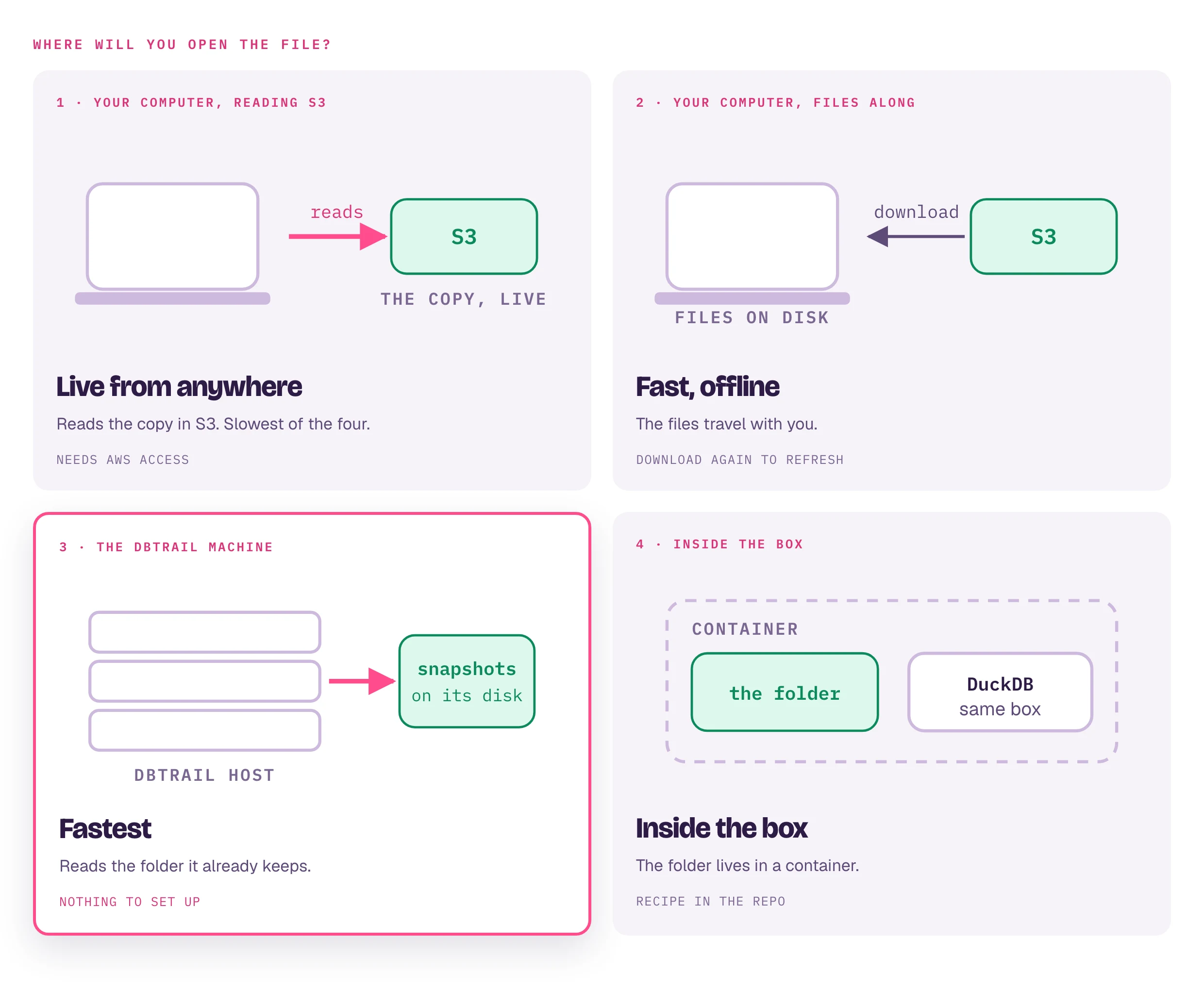
dbtrail stores two things as Parquet files, in your disk or your S3 bucket: the change history it moves out of the live index (every INSERT, UPDATE and DELETE, once the hour rotates out), and the backups you take (a full copy of every table at one moment). Both are plain, open files. You do not need dbtrail to read them: any DuckDB can.

The Query in DuckDB card on the Storage page hands you a small SQL file that turns those files into tables you can query by name. Nothing runs in the console. You download a text file, your DuckDB runs it, on your laptop or a reporting box, with no result caps and no load on your database.

What you get

One view named events with every archived change across all your archive locations, and one view named state_<schema>_<table> per table in your newest backup. The console writes the schema. Your DuckDB does the reading.

Before you start

  • DuckDB on the machine where you will run queries. Install the CLI from duckdb.org (brew install duckdb on a Mac). Version 1.2 or newer includes the browser UI shown below.
  • AWS access on that machine if your archives or backups live in S3. The file carries no keys: it tells DuckDB to use whatever your machine already has (an aws configure profile, environment variables, an instance role). aws sts get-caller-identity succeeding is enough.
  • Something to query: at least one archived hour, or one backup, for the selected server. A fresh install has neither yet, and the card stays hidden until it does.

Step 1: Download the schema

Open Monitor → Storage, pick the server in the sidebar, and click Open in DuckDB… on the Query in DuckDB card. Your browser saves a file named views.sql.

The Storage page with the Query in DuckDB card: a short explanation, a note that no credentials are in the file, and an Open in DuckDB button, next to the Rotation, AWS credentials and Backups cards.

The file is safe to read, share or commit. It contains paths and column names, never row data and never credentials. Open it in a text editor if you are curious: the header lists the archive locations and the backup it describes.

If the card is missing, one of three things is true: archives are turned off for this server, nothing has been archived and no backup exists yet, or your session has an access-control profile, which withholds the file because it maps straight onto the unredacted files.

Step 2: Open DuckDB with it

From the folder where the file landed:

duckdb -init views.sql lake.db

This opens an interactive DuckDB session, runs the file first, and leaves you at the D prompt with the views ready. lake.db is a local database file that keeps the view definitions between sessions; use any name.

Already inside a DuckDB session? Load the file with:

.read views.sql

The first load takes a moment (a minute on a large archive): DuckDB reads the footer of every Parquet file to learn the columns. You will see one Success line per statement. Then .tables lists your views and .quit exits.

Run the file in every session that reads S3

Views are saved in lake.db; the S3 connection is not. If you open lake.db tomorrow without the -init and query events, DuckDB answers "No credentials are provided". That is the session, not your keys. Run the file again and it works.

Do not turn the connection into a persistent one (PERSISTENT SECRET in DuckDB terms): DuckDB would resolve your AWS credentials at that moment and write the keys to a file in your home directory.

Step 3: Ask questions

Everything below is normal SQL, typed at the D prompt and ended with ;. The first query over events scans every archived file, which takes about a minute per hundred megabytes on S3; later queries on the same session are faster.

How many changes of each kind are in the archive:

SELECT event_type, count(*) AS changes
FROM events
GROUP BY 1 ORDER BY 2 DESC;

Which tables change the most:

SELECT schema_name, table_name, count(*) AS changes
FROM events
GROUP BY 1, 2 ORDER BY 3 DESC
LIMIT 10;

The latest changes to one table, with the row as it was before and after:

SELECT event_timestamp, event_type, pk_values, changed_columns, row_before, row_after
FROM events
WHERE table_name = 'orders'
ORDER BY event_timestamp DESC
LIMIT 20;

Changes by hour over one day (DuckDB shows times in your session's time zone; run SET TimeZone = 'UTC'; first to match the console):

SELECT date_trunc('hour', event_timestamp) AS hour, count(*) AS changes
FROM events
WHERE event_date = '2026-08-25'
GROUP BY 1 ORDER BY 1;

The rows of a table as they were in the newest backup (fast: one file, no scan of the change history):

SELECT count(*) FROM state_shop_orders;

SELECT id, status, total
FROM state_shop_orders
WHERE status = 'shipped'
ORDER BY id DESC
LIMIT 10;

events has one row per changed row. row_before and row_after hold the full row as JSON; changed_columns names what an UPDATE touched; pk_values is the primary key; event_type reads INSERT, UPDATE or DELETE; commit_time is the commit timestamp when the source recorded one. Filtering on event_date (and event_hour) is what lets DuckDB skip files, so add it to any query over a known window.

The DuckDB browser UI

DuckDB ships a notebook-style web UI. Start it from the session you opened in step 2, so it shares the views and the S3 connection:

CALL start_ui();

Your browser opens http://localhost:4213/. The left column lists events and every state_* view; add a cell, type SQL, press Cmd+Enter (Ctrl+Enter on Linux and Windows). Results come back as a table you can sort and export.

The DuckDB browser UI at localhost:4213: the lake database in the left column with the events view and the state views, a notebook cell with a SELECT over one state view, and its five result rows in a table.

The UI runs inside your DuckDB process. Queries and data stay on your machine; the page itself is loaded from ui.duckdb.org, so the first open needs internet access. The Sign in to MotherDuck button is optional; ignore it. Closing the terminal session closes the UI.

The UI cannot run .read (that is a command of the terminal client, not SQL). Either start it from the terminal as above, or open duckdb -ui and paste the whole content of views.sql into a cell: every line in it is plain SQL.

Two things to know

The file is a snapshot of the layout, not a live link. The events view keeps picking up new archived hours on its own. The state_* views point at one backup, the newest one at the time you downloaded. After you take a new backup, download the file again.

state_* is the backup, not the table right now. Changes after the backup are in events. To see a table as of a later moment, use the console: Restore for a single row, or Backups → Build a .sql backup for any moment for whole tables (see the PITR guide).

Keeping the Parquet fresh for reporting

Reporting queries against production hurt production. The files this guide reads are the same ones dbtrail keeps anyway, so they refresh with no extra load on your database:

  • Change history arrives on its own. Every hour that ages past the retention set on the Storage page is written to Parquet and, when the server has an S3 destination, uploaded. events sees it on the next query.
  • Backups refresh when you take one, from the Backups page or on a schedule. The daemon can also rebuild the newest backup from the change history it already holds, without reading your database at all, on a fixed interval (CLI: --baseline-refresh-interval 6h on bintrail-console watch, or the BINTRAIL_BASELINE_REFRESH_INTERVAL environment variable; hours or days). After each refresh, download views.sql again so the state_* views point at the new backup.

Fresh to the hour is the design point. For up-to-the-minute figures, query the live index through the Events page or the MCP tools instead.

Without the console

Headless and scripted setups write the same file from the command line, from the index or from an S3 location named directly:

bintrail views --index-dsn "user:pass@tcp(index-db:3306)/bintrail_index" \
  --baseline-s3 s3://my-bucket/baselines/ --out views.sql

bintrail views --archive-s3 s3://my-bucket/events/ --bintrail-id <server uuid> \
  --baseline-s3 s3://my-bucket/baselines/ --region us-west-2 --out views.sql

Every flag, and the layout of the files themselves for when you want to write the read_parquet globs by hand, is in the repository's Parquet reference.

A path that starts with / and you are not on the console host

Builds up to core 0.69 named an archive by the console host's local copy when one existed, even when the same files were in S3. If your downloaded file lists a local path for an archive you know is also in S3, replace it with the S3 location (s3://<bucket>/<prefix>/bintrail_id=<uuid>), or generate the file with bintrail views --archive-s3 as shown above. Newer builds name the S3 location whenever there is one.

On this page