Server Configuration
Register and manage MySQL instances that dbtrail monitors
A server represents a MySQL instance that dbtrail monitors. Registering a server tells dbtrail where to connect, how to authenticate, and which connection method to use. This page covers everything from initial setup to ongoing management.
Prerequisites
Before registering a server, make sure your MySQL instance is ready for dbtrail:
-
Binary logging is enabled and uses row format:
SHOW VARIABLES LIKE 'log_bin'; -- Must be ON SHOW VARIABLES LIKE 'binlog_format'; -- Must be ROW SHOW VARIABLES LIKE 'binlog_row_image'; -- Must be FULL -
Every table you want to track uses InnoDB and has a primary key:
-- Find non-InnoDB tables
SELECT TABLE_SCHEMA, TABLE_NAME, ENGINE
FROM information_schema.TABLES
WHERE TABLE_SCHEMA NOT IN ('mysql','information_schema','performance_schema','sys')
  AND ENGINE != 'InnoDB';

-- Find tables without a primary key
SELECT t.TABLE_SCHEMA, t.TABLE_NAME
FROM information_schema.TABLES t
LEFT JOIN information_schema.TABLE_CONSTRAINTS c
  ON t.TABLE_SCHEMA = c.TABLE_SCHEMA
  AND t.TABLE_NAME = c.TABLE_NAME
  AND c.CONSTRAINT_TYPE = 'PRIMARY KEY'
WHERE t.TABLE_SCHEMA NOT IN ('mysql','information_schema','performance_schema','sys')
  AND t.TABLE_TYPE = 'BASE TABLE'
  AND c.CONSTRAINT_NAME IS NULL;
Both queries should return empty results. If not, convert tables to InnoDB (
ALTER TABLE t ENGINE=InnoDB) and add primary keys (ALTER TABLE t ADD PRIMARY KEY (column)) before proceeding. Caution:ALTER TABLEon large tables can lock the table and take significant time — usept-online-schema-changeorgh-ostfor production databases. -
A dedicated MySQL user exists with the required privileges:
CREATE USER 'bintrail'@'%' IDENTIFIED BY 'strong_password_here';
GRANT REPLICATION SLAVE, REPLICATION CLIENT ON *.* TO 'bintrail'@'%';
GRANT SELECT ON *.* TO 'bintrail'@'%';  -- needed for schema snapshots
FLUSH PRIVILEGES;
Dedicated user
Always create a dedicated MySQL user for dbtrail. The bintrail username is conventional — it's the name of the open-source CLI that powers dbtrail's streaming engine. On each EC2 instance, a Go HTTP agent wraps the bintrail CLI to provide the SaaS data plane. Never use the root account. See Credential Management for how dbtrail secures your credentials.
Credential security
MySQL passwords are never stored as plaintext. dbtrail generates a vault reference and stores only that reference. The password is never persisted in the database.
Connection methods
dbtrail supports three connection methods:
| Method | Security | Use when |
|---|---|---|
| SSH tunnel (jumphost) | Recommended | Your database is in a private network behind a bastion host |
| Direct access | Use with caution | Your database port is reachable from the internet or a peered VPC |
| VPN | Varies | Your database is in a separate network connected via VPN |
SSH tunnel (jumphost)
This is the recommended method. dbtrail connects to your database through an SSH bastion host, so the database never needs to be exposed to the internet.
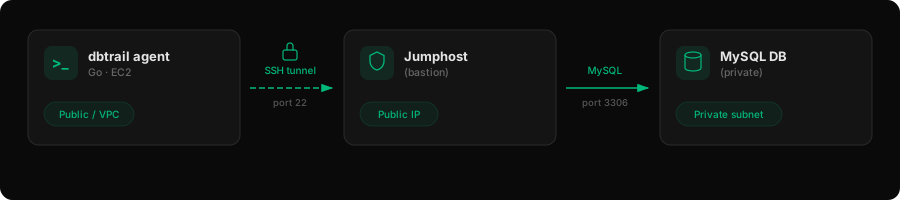
SSH tunnel prerequisites
In addition to the MySQL prerequisites above, you need:
Whitelist dbtrail's IP address
44.237.184.31Your jumphost's firewall or security group must allow inbound SSH (port 22) from this IP before dbtrail can connect. Add the rule now — if it is not open, the connection will fail and you will need to retry.
- Jumphost hostname or IP — the public address of your SSH bastion
- SSH user — a user on the jumphost that can forward connections (e.g.,
tunnel) - SSH private key — the private key for the SSH user (PEM or PPK format)
- Network path — the jumphost must be able to reach the MySQL host on port 3306
Step 1: Verify SSH access
From your local machine, confirm you can SSH into the jumphost and reach the MySQL host:
# Test SSH connectivity to the jumphost
ssh -i ~/.ssh/bastion_key tunnel@bastion.example.com echo "SSH OK"

# Test that the jumphost can reach MySQL
ssh -i ~/.ssh/bastion_key tunnel@bastion.example.com \
  nc -zv db.internal.example.com 3306
SSH key permissions
Your private key file must have restrictive permissions (600 or 400). SSH will refuse to use a key that is readable by others:
chmod 600 ~/.ssh/bastion_keyStep 2: Register the server
- Go to Dashboard → Servers → Register Server
- Fill in the connection details:
| Field | Value | Notes |
|---|---|---|
| Name | production-main | Human-readable label |
| Host | db.internal.example.com | The internal hostname that the jumphost can reach |
| Port | 3306 | MySQL port |
| Connection method | SSH tunnel | Select the radio option |
| MySQL user | bintrail | The dedicated user you created |
| MySQL password | •••••• | Stored securely in vault |
- Fill in the SSH tunnel configuration:
| Field | Value | Notes |
|---|---|---|
| SSH host | bastion.example.com | Public address of the jumphost |
| SSH port | 22 | Default SSH port |
| SSH user | tunnel | User on the jumphost |
| SSH key | (upload key file) | PEM or PPK format, max 16 KB |
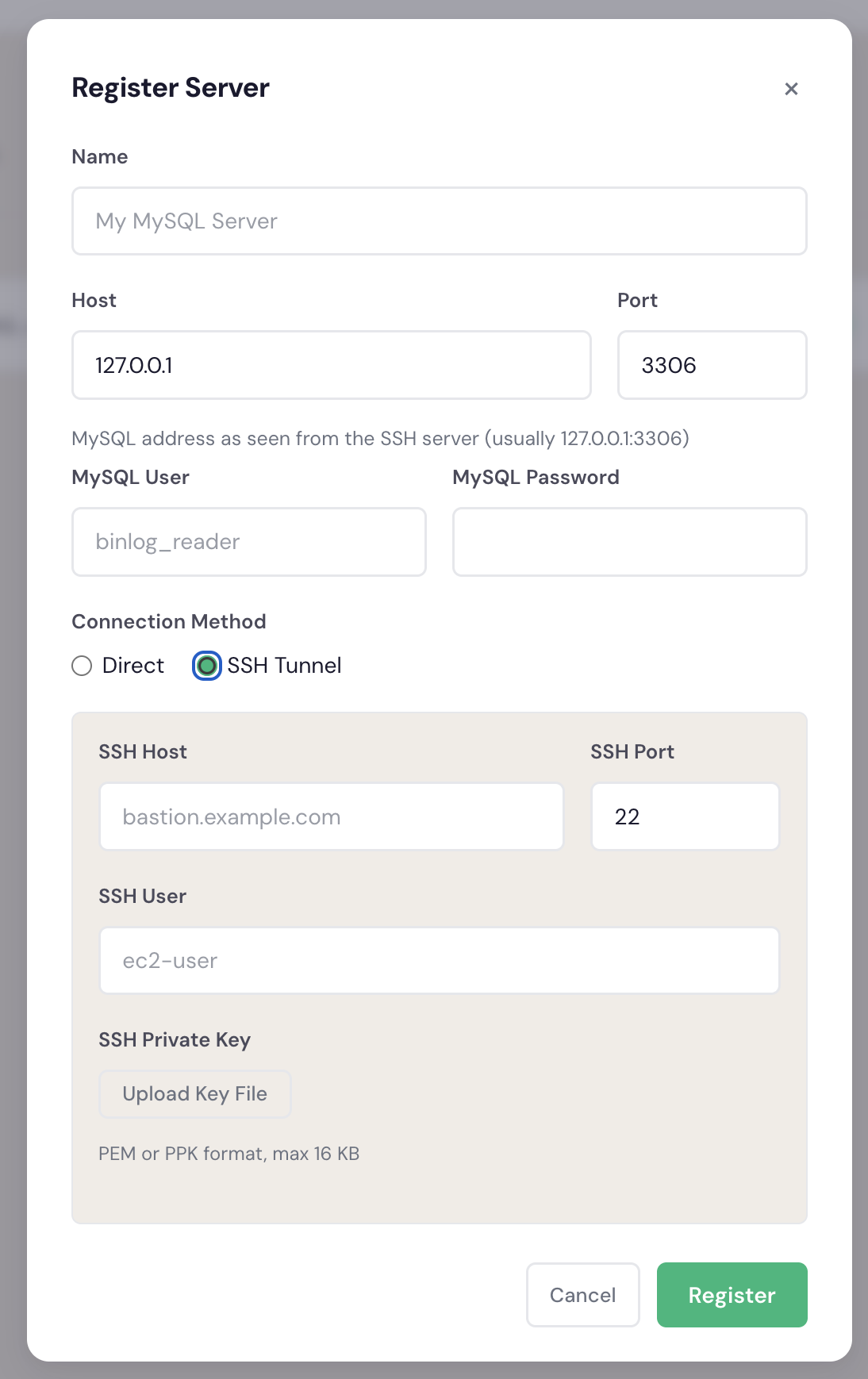
- Click Register
curl -X POST https://api.dbtrail.com/api/v1/servers \
  -H "Authorization: Bearer bt_live_YOUR_API_KEY" \
  -H "Content-Type: application/json" \
  -d '{
    "name": "production-main",
    "host": "db.internal.example.com",
    "port": 3306,
    "connection_method": "ssh_tunnel",
    "mysql_user": "bintrail",
    "mysql_password": "your_password",
    "ssh_config": {
      "host": "bastion.example.com",
      "port": 22,
      "user": "tunnel",
      "key": "-----BEGIN OPENSSH PRIVATE KEY-----\n...\n-----END OPENSSH PRIVATE KEY-----"
    }
  }'
See the Servers API reference for full request/response details.
SSH tunnel troubleshooting
| Problem | Cause | Fix |
|---|---|---|
| Connection Failed modal appears | Jumphost firewall not open | Add an inbound SSH rule (port 22) for 44.237.184.31/32 to your jumphost's security group, then click Retry |
| Server stuck in error | SSH connection failed | Verify the jumphost is reachable and the SSH key is correct |
| "Permission denied (publickey)" | Wrong SSH key or user | Check that the SSH user and private key match the jumphost configuration |
| "Connection timed out" on SSH | Firewall still blocking port 22 | Double-check that your jumphost's security group allows inbound SSH (port 22) from 44.237.184.31/32 |
| "Connection refused" on MySQL | Jumphost can't reach MySQL | Verify the MySQL host is reachable from the jumphost on port 3306 |
| SSH key rejected | Key has wrong permissions | Set chmod 600 on the private key file; ensure PEM format |
Direct access
With direct access, the dbtrail agent connects to MySQL without an intermediary. This is simpler to set up but requires the database port to be reachable from the dbtrail agent.
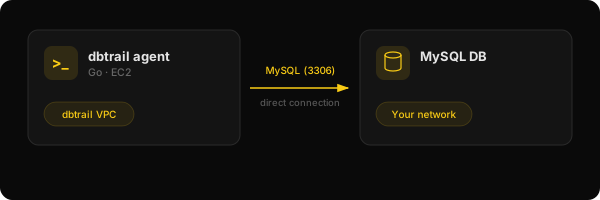
Security warning
Direct access requires your MySQL port to be reachable over the network. This is not recommended for production databases unless you have strict network controls in place. Prefer SSH tunnel access whenever possible.
Direct access prerequisites
In addition to the MySQL prerequisites above, you need:
- MySQL host — a hostname or IP reachable from the dbtrail agent
- Network/firewall rules — inbound traffic allowed on the MySQL port (default 3306)
Step 1: Configure network access
Ensure your MySQL server accepts connections from the dbtrail agent:
-
Cloud-hosted databases (AWS RDS, GCP Cloud SQL, Azure, etc.):
- Add dbtrail's outbound IP (
44.237.184.31) to the security group or authorized networks - For RDS: edit the VPC security group to allow inbound on port 3306 from
44.237.184.31/32 - For Cloud SQL: add
44.237.184.31as an authorized network entry
- Add dbtrail's outbound IP (
-
Self-hosted databases:
- Configure your firewall to allow inbound TCP on port 3306 from
44.237.184.31/32 - Verify MySQL's
bind-addressis not set to127.0.0.1(use0.0.0.0or the specific interface)
- Configure your firewall to allow inbound TCP on port 3306 from
Step 2: Register the server
- Go to Dashboard → Servers → Register Server
- Fill in the connection details:
| Field | Value | Notes |
|---|---|---|
| Name | production-main | Human-readable label |
| Host | db.example.com | Public hostname or IP |
| Port | 3306 | MySQL port |
| Connection method | Direct | Select the radio option |
| MySQL user | bintrail | The dedicated user you created |
| MySQL password | •••••• | Stored securely in vault |
- Click Register
curl -X POST https://api.dbtrail.com/api/v1/servers \
  -H "Authorization: Bearer bt_live_YOUR_API_KEY" \
  -H "Content-Type: application/json" \
  -d '{
    "name": "production-main",
    "host": "db.example.com",
    "port": 3306,
    "connection_method": "direct",
    "mysql_user": "bintrail",
    "mysql_password": "your_password"
  }'
See the Servers API reference for full request/response details.
Security hardening
If you must use direct access, apply these hardening measures:
| Measure | How |
|---|---|
| IP allowlisting | Restrict inbound MySQL access to only 44.237.184.31/32 in your firewall / security group |
| TLS encryption | Enable SSL/TLS on your MySQL server (require_secure_transport = ON) to encrypt data in transit |
| Strong credentials | Use a long, random password for the dbtrail MySQL user |
| Minimal privileges | Only grant REPLICATION SLAVE, REPLICATION CLIENT, and SELECT — nothing more |
| Dedicated user | Never share the dbtrail MySQL user with other applications |
| Audit logging | Enable MySQL's audit log to track all connections from the dbtrail user |
Direct access troubleshooting
| Problem | Cause | Fix |
|---|---|---|
| Server stuck in error | MySQL is unreachable | Verify the host/port are correct and the firewall allows inbound traffic |
| "Access denied" | Invalid credentials | Check the MySQL username and password; verify the user has the required privileges |
| "Connection timed out" | Firewall blocking | Ensure port 3306 is open inbound from 44.237.184.31/32 |
| "Host not allowed" | MySQL host restriction | The MySQL user may be restricted to specific hosts — use 'bintrail'@'%' or add 44.237.184.31 |
Onboarding process
After registering a server (via either connection method), it goes through the onboarding process automatically.
First server requires approval
If this is your organization's first server, it will need admin approval before onboarding begins. You will see a Pending Approval status until an administrator approves the request. Subsequent servers start onboarding immediately.
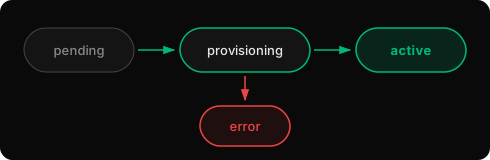
- Go to Dashboard → Servers — your new server will show Pending Approval status:

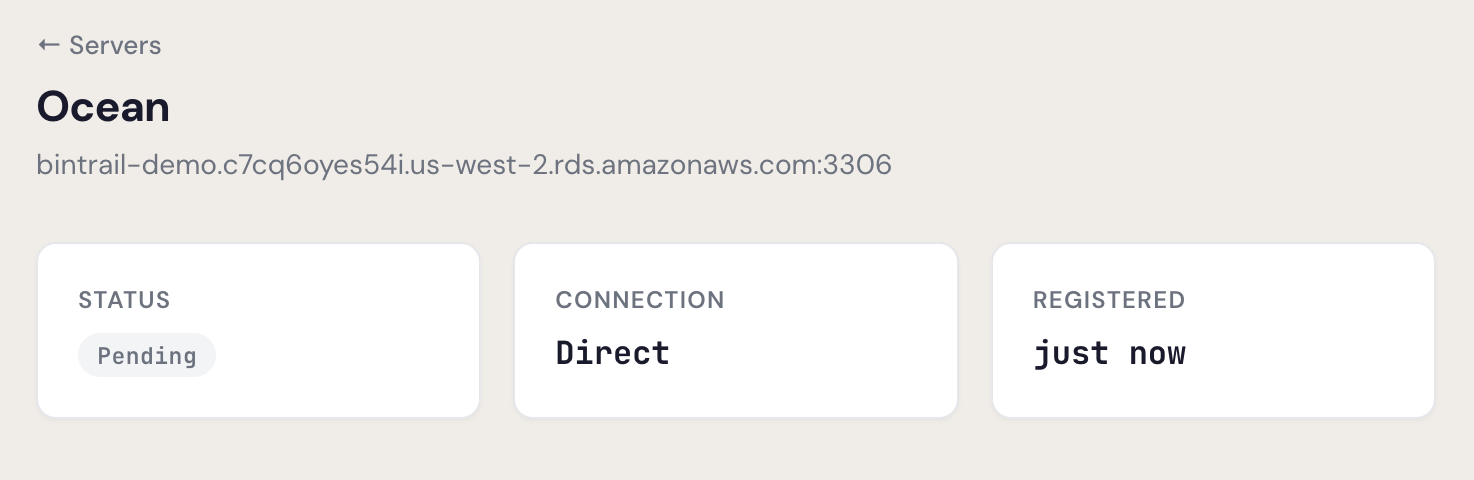
- Click the server name to open the detail page. You'll see the current status, connection method, and registration time:
- Once approved, the Onboarding Progress panel appears and steps begin completing automatically:
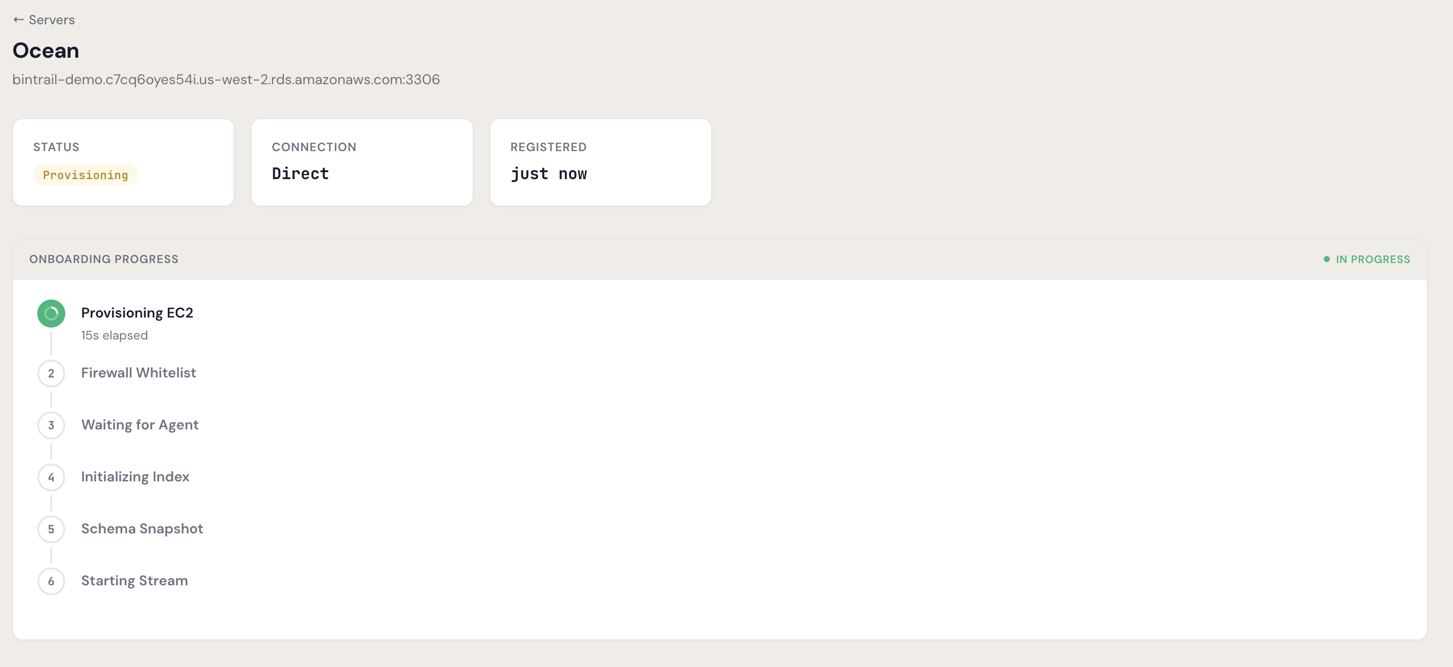
- Watch the onboarding steps complete:
- Provisioning EC2 — assigning compute resources
- Waiting for Agent — agent is starting up
- Initializing Index — creating index tables
- Schema Snapshot — capturing current schema structure
- Starting Stream — binlog streaming has started
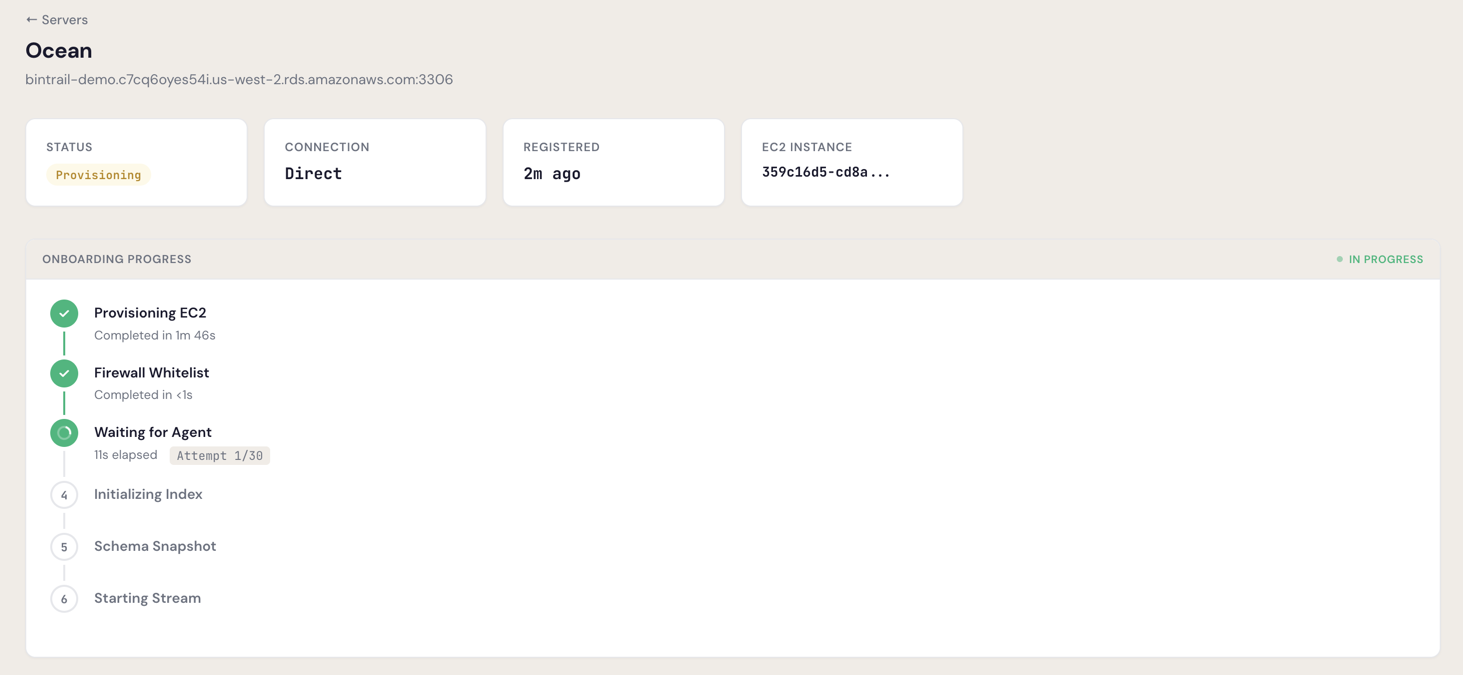
- When all steps are complete, the server status changes to Active:
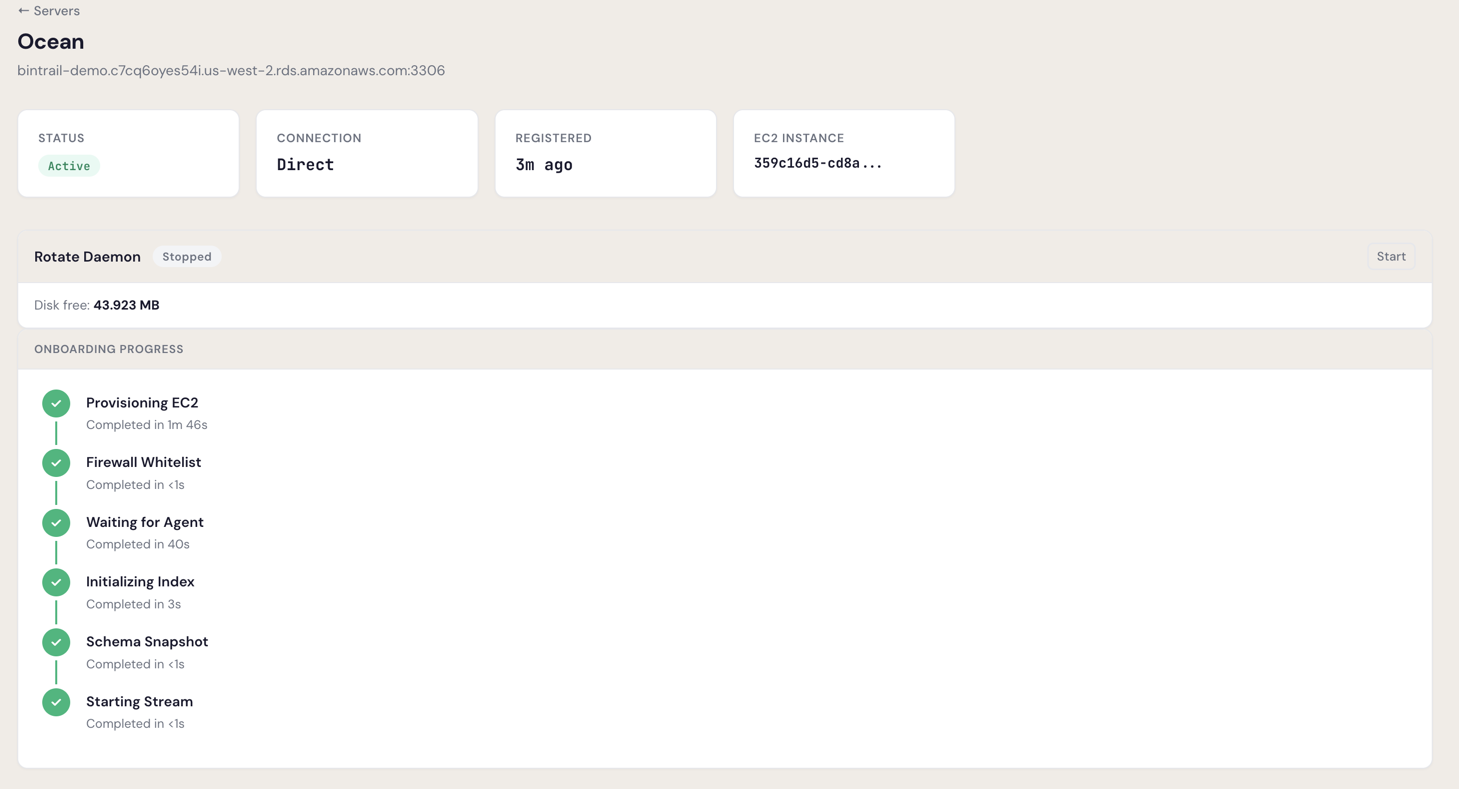
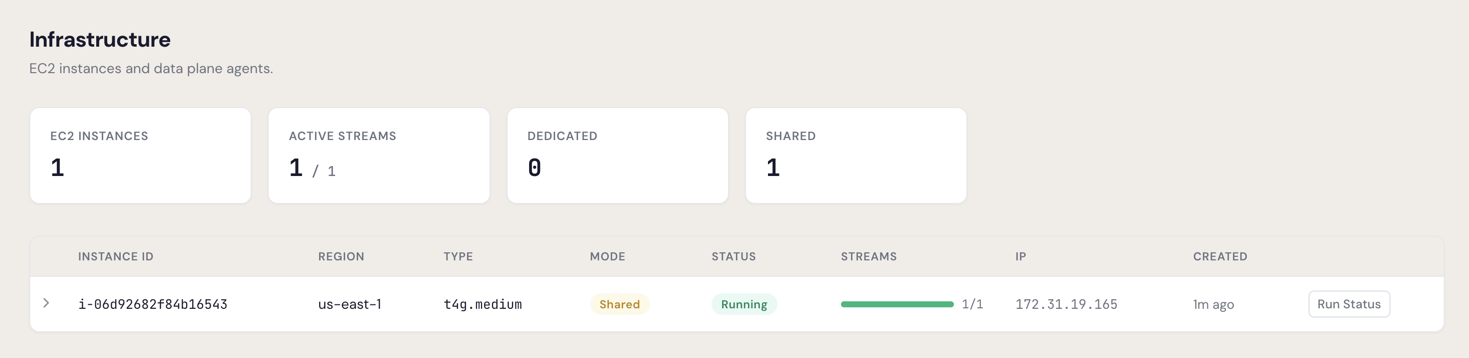
- You can verify the stream is running from the Infrastructure page:
Connection failures (SSH tunnel)
If your jumphost's firewall is not configured to allow dbtrail's outbound IP, the SSH tunnel connection will fail and the server status will change to error. The dashboard will automatically show a Connection Failed modal with dbtrail's outbound IP and a Retry button.
dbtrail outbound IP:
44.237.184.31
To resolve:
- Add an inbound rule on your jumphost's security group allowing SSH (port 22) from
44.237.184.31/32 - Click Retry in the Connection Failed modal
Onboarding will restart the failed step automatically.
Rotate Daemon (optional)
The Rotate Daemon manages automatic binary log rotation on the agent to prevent disk usage from growing unbounded. You can find it on the server detail page:

Click Start to configure the rotation schedule:
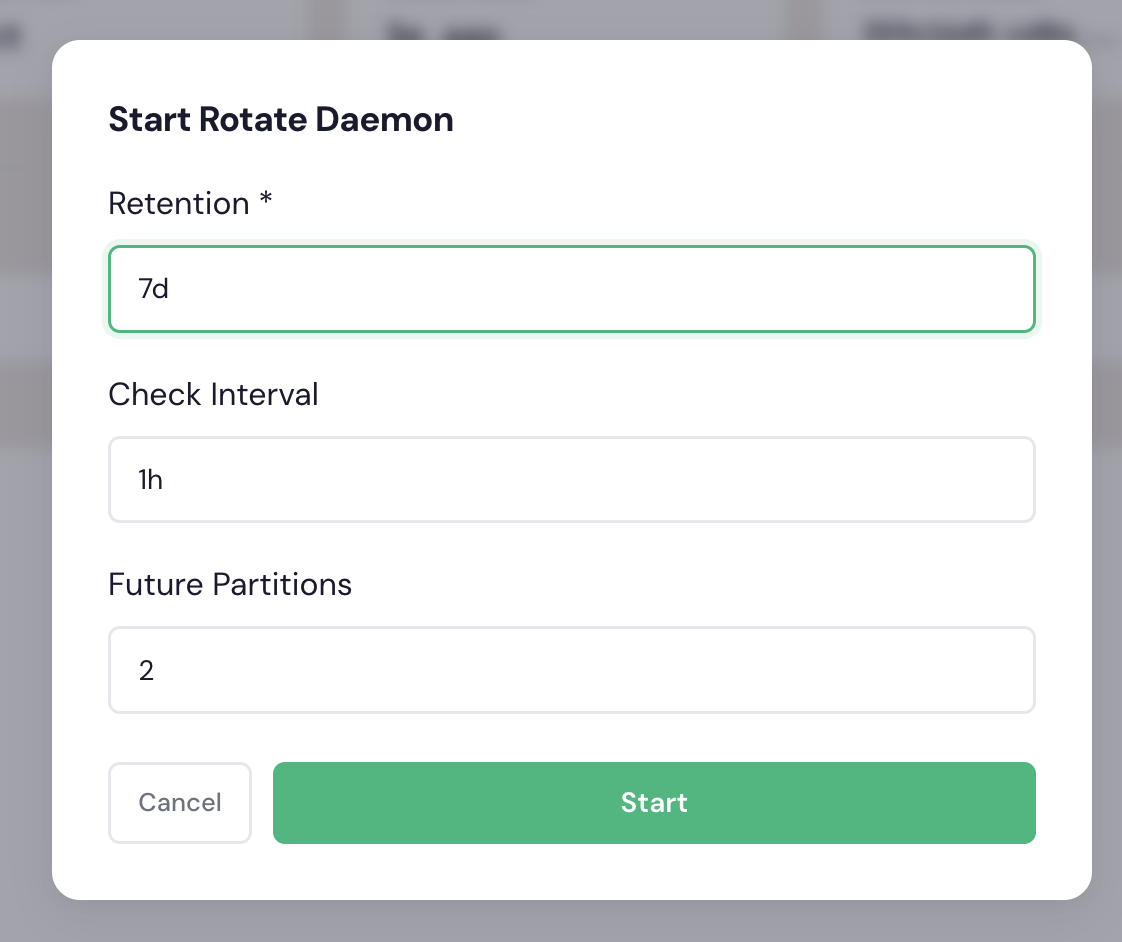
| Setting | Default | Description |
|---|---|---|
| Retention | 7d | How long to keep binary log data before rotation |
| Check Interval | 1h | How often the daemon checks for logs to rotate |
| Future Partitions | 2 | Number of future partitions to pre-create |
Registration fields
Required fields
| Field | Type | Description |
|---|---|---|
name | string | Human-readable name for this server |
host | string | MySQL server hostname or IP |
mysql_user | string | MySQL username for bintrail |
mysql_password | string | MySQL password (stored in vault, never persisted as plaintext) |
Optional fields
| Field | Type | Default | Description |
|---|---|---|---|
port | integer | 3306 | MySQL port |
connection_method | string | "direct" | One of: direct, ssh_tunnel, vpn |
ssh_config | object | null | SSH tunnel configuration (see SSH tunnel above) |
Server status lifecycle
pending → provisioning → awaiting_firewall* → active → decommissioned
                  ↓              ↓                 ↓
                error          error          disconnected → active
* This is an internal state that auto-completes. If the SSH tunnel connection fails, the server transitions to error and a Connection Failed modal appears.
| Status | Description |
|---|---|
pending | Server registered, waiting for EC2 assignment |
provisioning | EC2 is being set up, bintrail agent is initializing |
awaiting_firewall | Internal state that auto-completes; if the SSH tunnel fails, the server transitions to error and a Connection Failed modal appears |
active | Agent is running and streaming changes |
disconnected | Agent lost connection to MySQL (auto-retries) |
error | Unrecoverable error during provisioning or operation |
decommissioned | Server has been soft-deleted |
Updating a server
You can update name, connection_method, and ssh_config via a PATCH request. The host, port, and MySQL credentials cannot be changed after registration. You cannot update a decommissioned server. See the Servers API reference for the update and other endpoints.
Decommissioning a server
Decommissioning is a soft-delete. The server's status is set to decommissioned, streams are stopped, and it no longer appears in list queries. See the Servers API reference for the delete endpoint.
Next steps
Once your server is active and streaming changes:
- Query your changes — search by schema, table, time range, or event type
- Configure streams — filtering, checkpoint intervals, SSL
- Connect Claude — query your database changes from Claude or other AI apps